Sometimes we need to share a file quickly in a folder with a colleague while at work.
Well if you have apple devices, you can quickly share files and folders with AirDrop.
But what if you have a mix of operating systems and you don't have a portable HDD or a USB
pen drive at vicinity?
If you have python installed in your operating system by default,
here's how to do it quickly and easily...
Two computers I'm using are having OS X Yosemite and Ubuntu operating systems.
I'm trying to share a file in a given folder at my OS X Mac and download it from a web browser from my friend's ubuntu computer.
From my computer
1. Go to the folder from a terminal session.
2. Find the IP address of the computer that the file is in.
> ifconfig
Note: my IP is 10.100.5.175
3. Issue the following command to start the python SimpleHTTPServer.
> python -m SimpleHTTPServer
Note: server starting on port 8000 [1].
From my friend's computer
4. From the ubuntu computer (10.100.0.101) open web browser and access the following URL.
http://10.100.5.175:8000/
5. Select the file you want and download.
Note: observe the request coming to the python SimpleHTTPServer from terminal [2].
[1]
Suhans-MacBook-Pro:compressed suhanr$ python -m SimpleHTTPServer
Serving HTTP on 0.0.0.0 port 8000 ...
[2]
10.100.0.101 - - [10/Mar/2015 10:14:27] "GET / HTTP/1.1" 200 -
10.100.0.101 - - [10/Mar/2015 10:14:27] code 404, message File not found
10.100.0.101 - - [10/Mar/2015 10:14:27] "GET /favicon.ico HTTP/1.1" 404 -
10.100.0.101 - - [10/Mar/2015 10:14:33] "GET /wso2is-5.0.0.zip HTTP/1.1" 200 -
Showing posts with label Python. Show all posts
Monday, March 9, 2015
Tuesday, January 20, 2015
Invoke a shell script via python script and print result
1. Create your shell script.
> vi call.sh
Contents:
#!/bin/bash
return_str(){
echo "shell return"
}
return_str
2. Give executable permission to run the script.
> chmod +x call.sh
Note:
If you don't give executable permission, following error occurs.
-------------------
Traceback (most recent call last):
File "invoke.py", line 4, in <module>
toPrint2 = check_output(['./call.sh'])
File "/usr/lib/python2.7/subprocess.py", line 537, in check_output
process = Popen(stdout=PIPE, *popenargs, **kwargs)
File "/usr/lib/python2.7/subprocess.py", line 679, in __init__
errread, errwrite)
File "/usr/lib/python2.7/subprocess.py", line 1249, in _execute_child
raise child_exception
OSError: [Errno 13] Permission denied
3. Create your python script.
> vi invoke.py
Contents:
from subprocess import check_output
print "-------------------"
toPrint2 = check_output(['./call.sh'])
print toPrint2
4. Run your python script.
> python invoke.py
-------------------
shell return
> vi call.sh
Contents:
#!/bin/bash
return_str(){
echo "shell return"
}
return_str
> chmod +x call.sh
Note:
If you don't give executable permission, following error occurs.
-------------------
Traceback (most recent call last):
File "invoke.py", line 4, in <module>
toPrint2 = check_output(['./call.sh'])
File "/usr/lib/python2.7/subprocess.py", line 537, in check_output
process = Popen(stdout=PIPE, *popenargs, **kwargs)
File "/usr/lib/python2.7/subprocess.py", line 679, in __init__
errread, errwrite)
File "/usr/lib/python2.7/subprocess.py", line 1249, in _execute_child
raise child_exception
OSError: [Errno 13] Permission denied
3. Create your python script.
> vi invoke.py
Contents:
from subprocess import check_output
print "-------------------"
toPrint2 = check_output(['./call.sh'])
print toPrint2
4. Run your python script.
> python invoke.py
-------------------
shell return
Now lets try something advanced.
Say you have a web server starting in a given port and you want to know as soon as the server comes online.
This is how you do it.
1. Change python script as follows
Content:
from subprocess import call
print "-------------------"
call(['./portListener.sh'], shell="True")
2. Create our new shell script to listen to the port
> vi portListener.sh
Content:
#!/bin/bash
echo -n Please wait...
while ! echo exit | nc 192.168.92.4 9443; do
echo -n '.';
sleep 1; # Scan for every 1 second interval.
done
echo Server 192.168.92.4 is online on port 9443...
3. Give executable permission to run the script
> chmod +x portListener.sh
4. Run the python script
> python invoke.py
-------------------
Please wait.............
Here you can see the progress bar in action waiting for the server to become online.
5. Start your server.
Say that it's ip is 192.168.92.4 and running on port 9443. I have used WSO2 ELB 2.1.0 for my testing in a virtual machine environment.
Also make sure that your python script running instance can access this server's network.
6. Once the server becomes online, the script will be completed saying the given server is online.
-------------------
Please wait..............................Server 192.168.92.4 is online on port 9443...
Have fun...
Say you have a web server starting in a given port and you want to know as soon as the server comes online.
This is how you do it.
1. Change python script as follows
Content:
from subprocess import call
print "-------------------"
call(['./portListener.sh'], shell="True")
2. Create our new shell script to listen to the port
> vi portListener.sh
Content:
#!/bin/bash
echo -n Please wait...
while ! echo exit | nc 192.168.92.4 9443; do
echo -n '.';
sleep 1; # Scan for every 1 second interval.
done
echo Server 192.168.92.4 is online on port 9443...
3. Give executable permission to run the script
> chmod +x portListener.sh
4. Run the python script
> python invoke.py
-------------------
Please wait.............
Here you can see the progress bar in action waiting for the server to become online.
5. Start your server.
Say that it's ip is 192.168.92.4 and running on port 9443. I have used WSO2 ELB 2.1.0 for my testing in a virtual machine environment.
Also make sure that your python script running instance can access this server's network.
-------------------
Please wait..............................Server 192.168.92.4 is online on port 9443...
Have fun...
Labels:
port listener,
Python,
shell progress bar,
shell script
Monday, December 15, 2014
Python load configurations from a file
Say you have a file deployment.cfg with configurations which are nicely grouped in sections.
This is how you should read this configuration file in python.
import ConfigParser
import collections
# Global variables
config = ConfigParser.RawConfigParser(allow_no_value=True)
# Get environment
def get_environment():
config.read('deployment.cfg')
return config.get('environment', 'env')
# Load environment configuration
def get_openstack_image():
config.read('deployment.cfg')
return config.get('envconfig', 'image')
.
.
.
# Nova credentials are loaded from OS environmental variables
def load_server_config():
serverList = []
config.read('deployment.cfg')
orderedDic = collections.OrderedDict(config.items('nodes'))
for node, ip in orderedDic.iteritems():
serverList.append(node)
print serverList
return serverList
Reference:
[1] http://stackoverflow.com/questions/27483096/python-config-parser-array-sort-according-to-file-content-sequence
[environment]
env = openstack
[envconfig]
image = suhan-daf-agentv4-ubuntu14.04
flavor = m2.small
network = qaa-net
instancePassword = suhan
keyPair = mycloudkey
[nodes]
appserver-mgr2
appserver-wkr2
This is how you should read this configuration file in python.
import ConfigParser
import collections
# Global variables
config = ConfigParser.RawConfigParser(allow_no_value=True)
# Get environment
def get_environment():
config.read('deployment.cfg')
return config.get('environment', 'env')
# Load environment configuration
def get_openstack_image():
config.read('deployment.cfg')
return config.get('envconfig', 'image')
.
.
.
# Nova credentials are loaded from OS environmental variables
def load_server_config():
serverList = []
config.read('deployment.cfg')
orderedDic = collections.OrderedDict(config.items('nodes'))
for node, ip in orderedDic.iteritems():
serverList.append(node)
print serverList
return serverList
Reference:
[1] http://stackoverflow.com/questions/27483096/python-config-parser-array-sort-according-to-file-content-sequence
Thursday, November 13, 2014
NovaClient and Floating IP related errors
Error 1:
ERROR (NotFound): FloatingIpPoolNotFound: Floating ip pool not found. (HTTP 404)
root@puppet:/opt/python-script# nova floating-ip-create
ERROR (NotFound): FloatingIpPoolNotFound: Floating ip pool not found. (HTTP 404) (Request-ID: req-11559652-fb3d-40a2-b260-34a2af1eb9a6)
This error occur when the default nova floating ip pool is not present.
Default floating ip pool is 'nova'.
In my case it was mentioned as 'external'
After specifying the external pool in floating ip create command, ip was successfully created.
root@puppet:/opt/python-script# nova floating-ip-create external
+----------------+-----------+----------+----------+
| Ip | Server Id | Fixed Ip | Pool |
+----------------+-----------+----------+----------+
| 192.168.17.156 | - | - | external |
+----------------+-----------+----------+----------+
Error 2:
No nw_info cache associated with instance (HTTP 400) (Request-ID: req-ba8c1adc-cc41-4592-8ac2-9d01cd66f6e8)
When trying to add a floating ip address (which is already created) to a newly spawned instance in OpenStack cloud, I was getting the following error.
<FloatingIP fixed_ip=None, id=7e438ee9-4e5e-4b6d-b43b-246d18039890, instance_id=None, ip=192.168.17.159, pool=external>
exception is No nw_info cache associated with instance (HTTP 400) (Request-ID: req-ba8c1adc-cc41-4592-8ac2-9d01cd66f6e8)
ERROR (NotFound): FloatingIpPoolNotFound: Floating ip pool not found. (HTTP 404)
root@puppet:/opt/python-script# nova floating-ip-create
ERROR (NotFound): FloatingIpPoolNotFound: Floating ip pool not found. (HTTP 404) (Request-ID: req-11559652-fb3d-40a2-b260-34a2af1eb9a6)
This error occur when the default nova floating ip pool is not present.
Default floating ip pool is 'nova'.
In my case it was mentioned as 'external'
After specifying the external pool in floating ip create command, ip was successfully created.
root@puppet:/opt/python-script# nova floating-ip-create external
+----------------+-----------+----------+----------+
| Ip | Server Id | Fixed Ip | Pool |
+----------------+-----------+----------+----------+
| 192.168.17.156 | - | - | external |
+----------------+-----------+----------+----------+
Error 2:
No nw_info cache associated with instance (HTTP 400) (Request-ID: req-ba8c1adc-cc41-4592-8ac2-9d01cd66f6e8)
When trying to add a floating ip address (which is already created) to a newly spawned instance in OpenStack cloud, I was getting the following error.
<FloatingIP fixed_ip=None, id=7e438ee9-4e5e-4b6d-b43b-246d18039890, instance_id=None, ip=192.168.17.159, pool=external>
exception is No nw_info cache associated with instance (HTTP 400) (Request-ID: req-ba8c1adc-cc41-4592-8ac2-9d01cd66f6e8)
This was due to instance was not properly started its networking operations and we were trying to assign the floating ip address to it.
After introducing a small delay between spawning the instance and assigning the newly created floating ip address to it, the operation was successful.
root@puppet:/opt/python-script# python test.py
Generating nova credentials...
Retrieving image, flavor and network information...
<Image: suhan-daf-agent-ubuntu12.04>
<Network: network-routable>
7bb05f0b-44b4-4c6d-a36f-7194dc43bd42
ACTIVE
<FloatingIP fixed_ip=None, id=d7938b77-ead2-40ce-b992-65770544304b, instance_id=None, ip=192.168.17.162, pool=external>
{u'network-routable': [{u'OS-EXT-IPS-MAC:mac_addr': u'fa:16:3e:74:b4:80', u'version': 4, u'addr': u'192.168.30.174', u'OS-EXT-IPS:type': u'fixed'}]}
192.168.30.174
940c3175-f066-4062-ba77-9fa3b74904c4
ACTIVE
Tuesday, October 14, 2014
Building your own Python docker cartridge for Apache Stratos
How about building your own python-cartridge?
It’s easy, lets follow the steps below.
- Copy the github files to a shared location where your host machine and the VM can access. [e.g.: mine: users/suhanr/Documents in VirtualBox Settings -> Shared Folders]
This will be easy when you want to edit configuration files and modify file contents.
Important files and folders.
- Dockerfile - Facilitate automated docker image building process.
- packs folder contains our stratos cartridge agent, ActiveMQ libraries required and java 1.7 package.
- init.sh
- run_scripts.sh
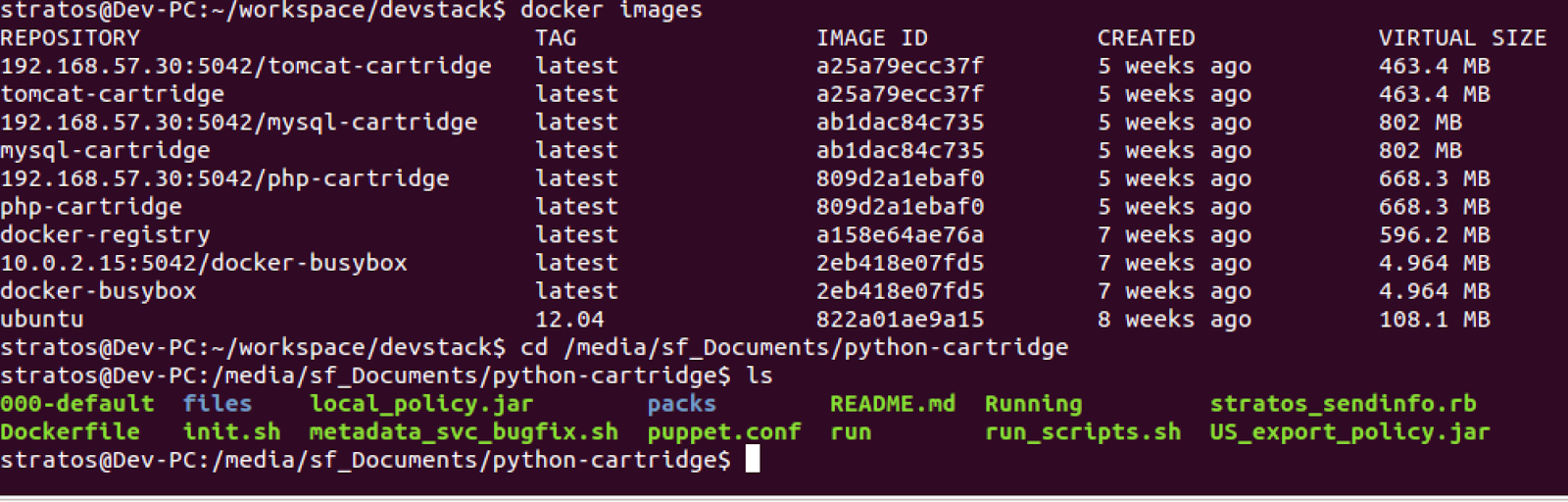
- Open a terminal session in the VM and find the shared folder as follows. Go inside that folder.
Say for example your shared folder name is like “VMShared”, then it will appear inside /media/ folder as sf_VMShared.
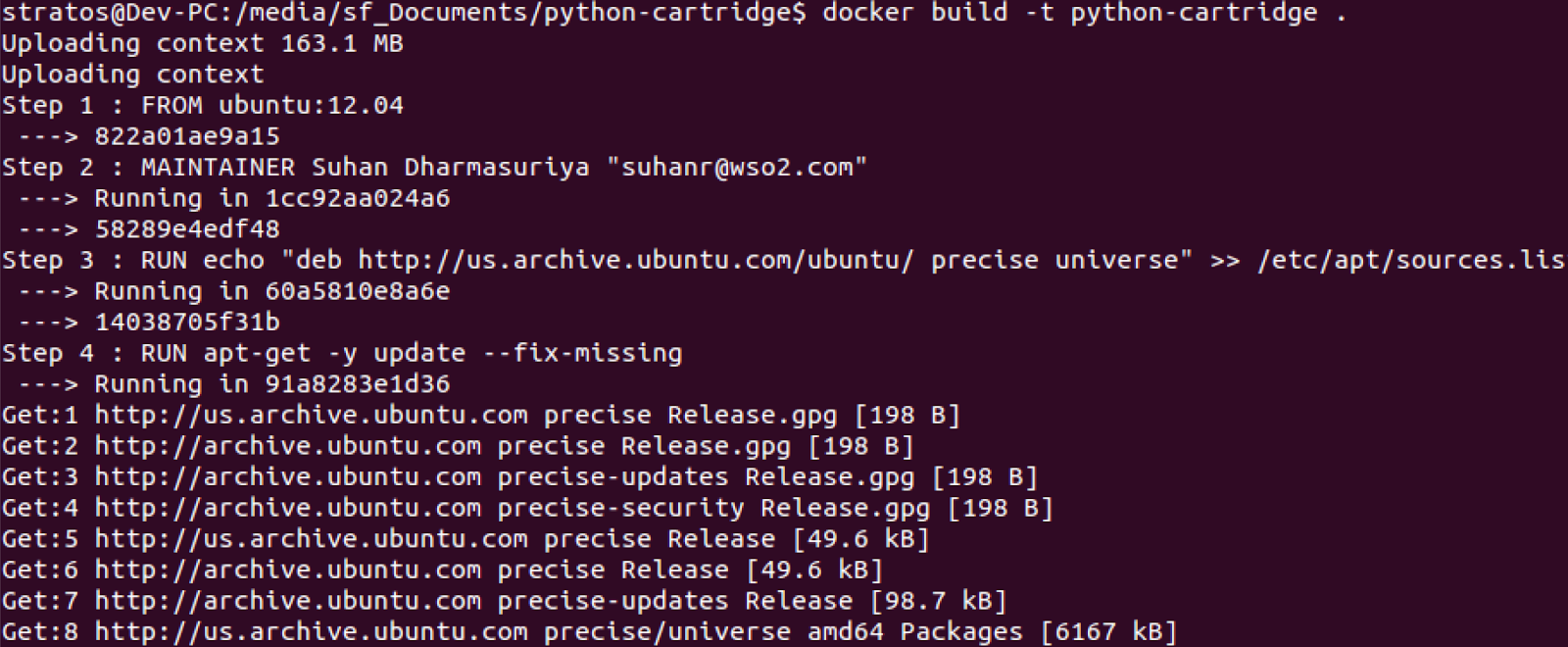
- Simply issue the docker build command to start Docker image automated building process.
docker build -t python-cartridge .
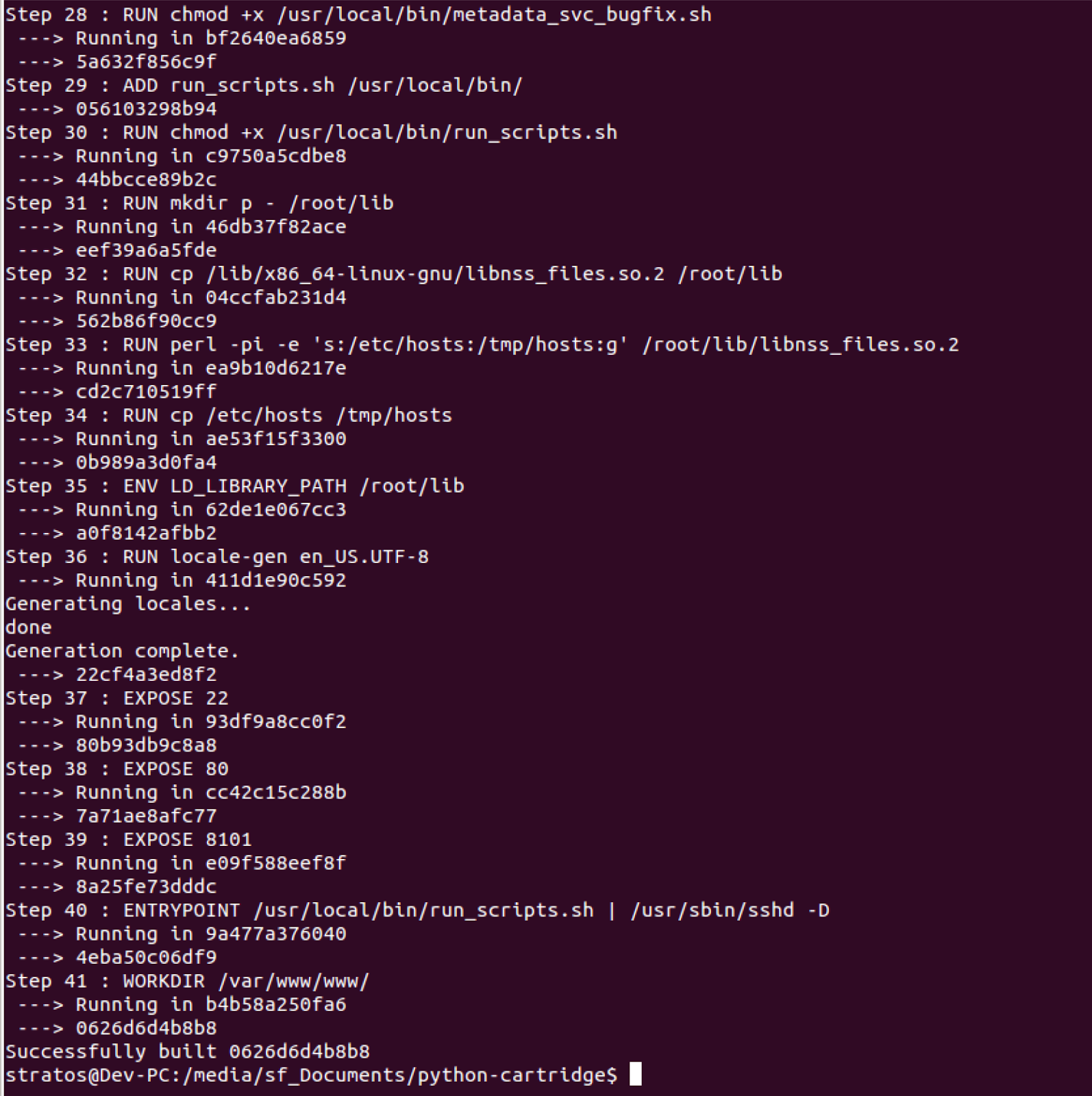
When the build is successful the output will be similar as shown in the below image.
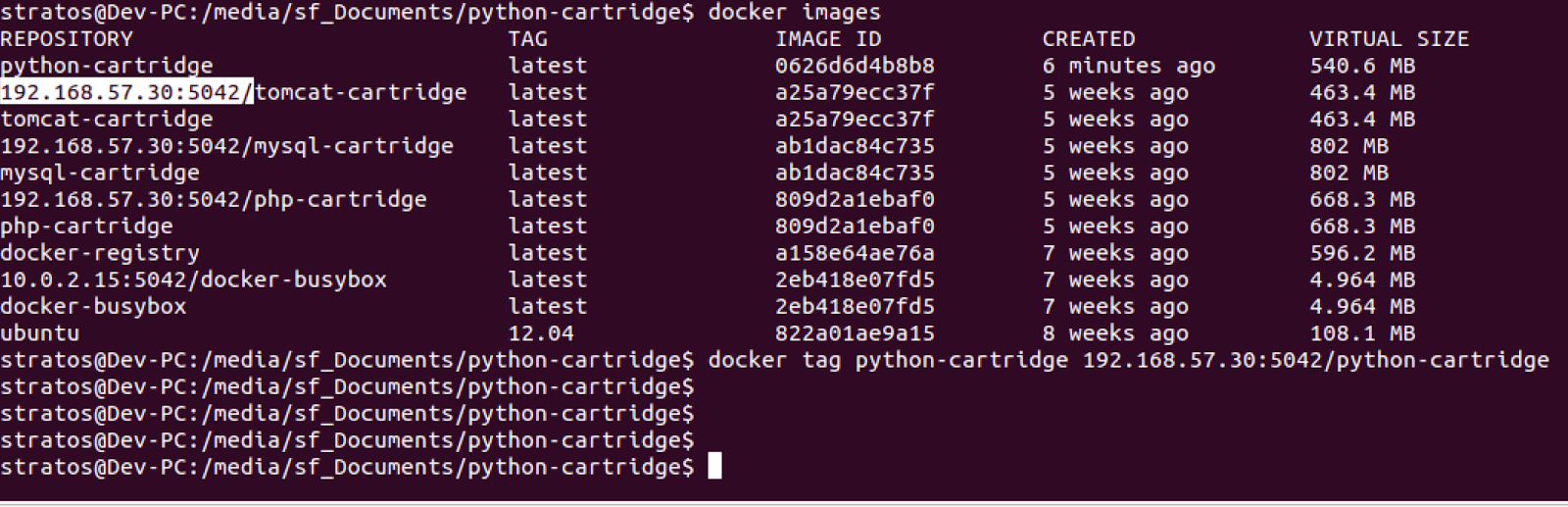
- Now tag your root repository as follows
docker tag python-cartridge 192.168.57.30:5042/python-cartridge
If you try to push the root repository to docker you will get the below error.
Impossible to push a "root" repository. Please rename your repository in <user>/<repo> (ex: <user>/python-cartridge)
- It is time to push your newly built docker image with the newly created tag to the glance repository
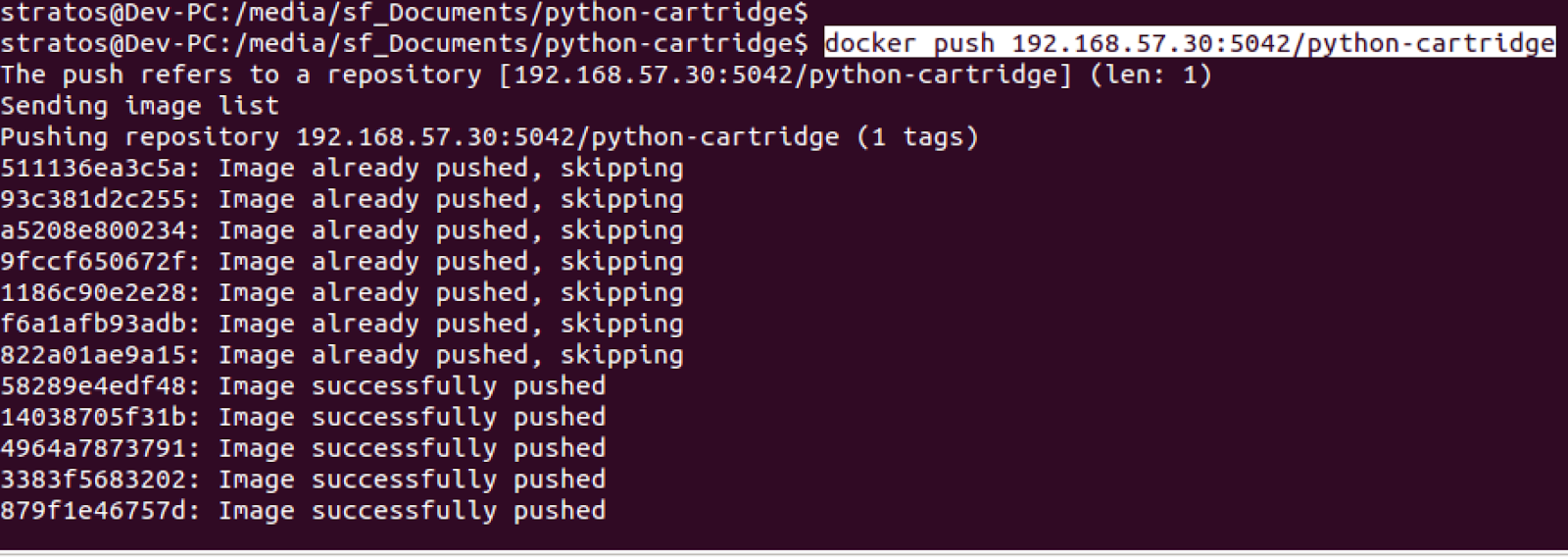
docker push 192.168.57.30:5042/python-cartridge
When the image is successfully pushed you will get an output similar to this.
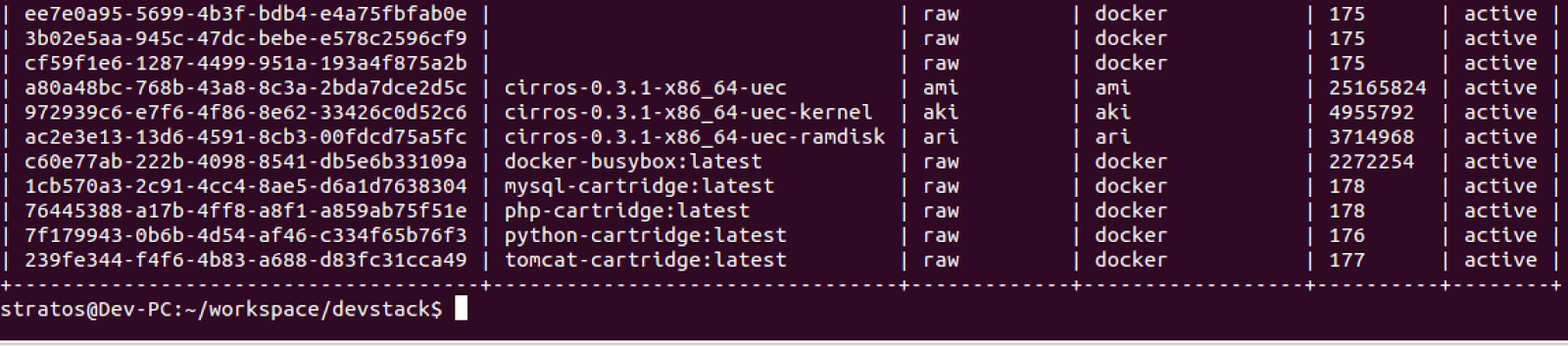
- Now go to glance repository and get the image id of your newly pushed docker image. [This will be needed when you configure your newly built cartridge in Apache Stratos]
> cd /home/stratos/workspace/devstack/
> . openrc admin admin
> glance image-list
sample image ID: 7f179943-0b6b-4d54-af46-c334f65b76f3
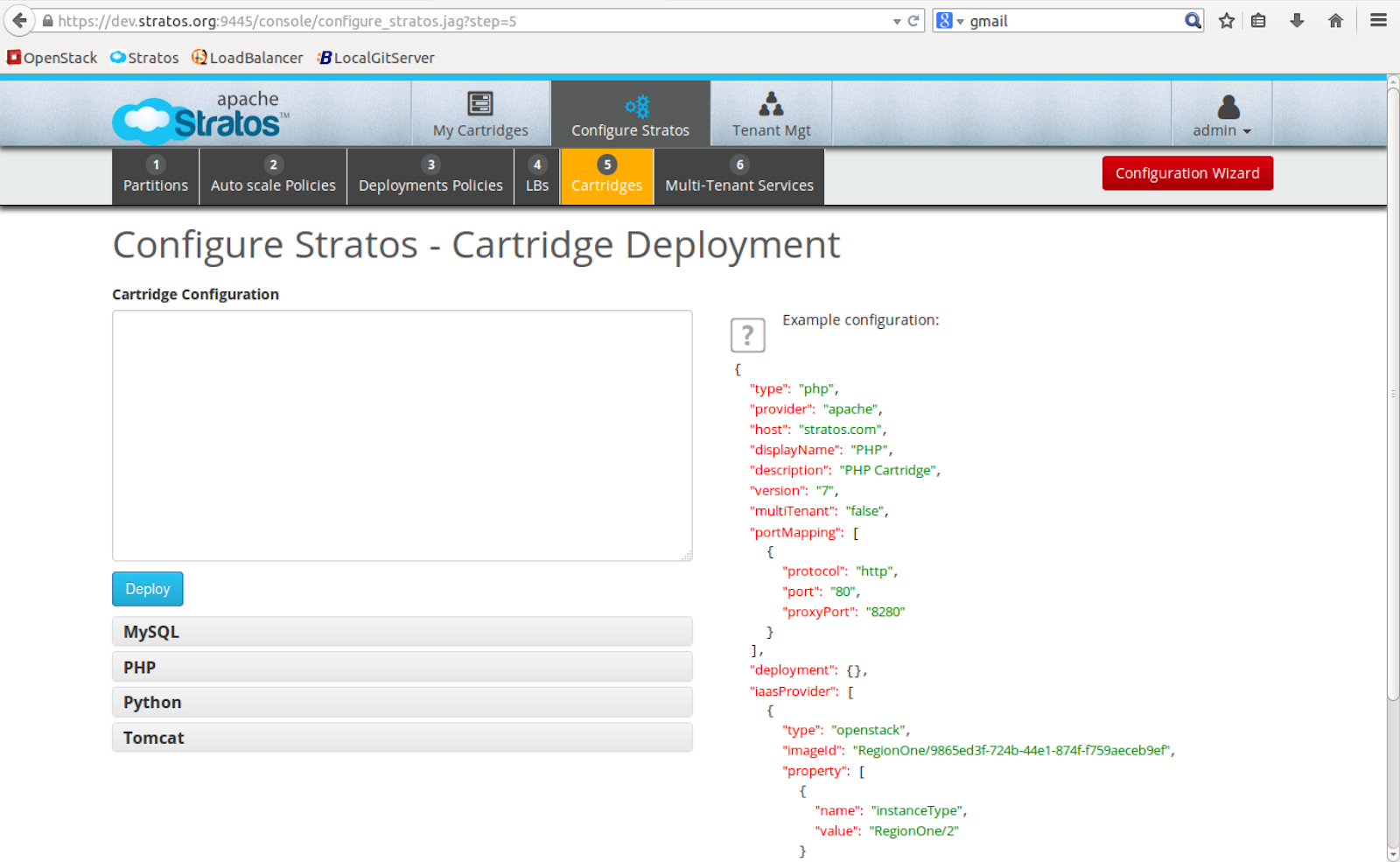
- Now it is time to configure your newly built cartridge in Apache Stratos
You can find the python configuration files here - Download
Open your web browser in VM and go to the following link.
https://dev.stratos.org:9445/console/
Since partition and auto scale policies are already defined configure Deployment policy and cartridge configuration.
Sample Deployment policy:
{
"id": "python-openstack",
"partitionGroup": {
"id": "openstack",
"partitionAlgo": "one-after-another",
"partition": [
{
"id": "P1",
"partitionMax": "2",
"partitionMin": "1"
}
]
}
}
Sample Cartridge configuration:
{
"type": "python",
"provider": "python",
"host": "dev.stratos.org",
"defaultAutoscalingPolicy": "economyPolicy",
"defaultDeploymentPolicy": "python-openstack",
"displayName": "Python",
"description": "Python Cartridge",
"version": "2.7",
"multiTenant": "false",
"portMapping": [
{
"protocol": "http",
"port": "80"
}
],
"deployment": {},
"iaasProvider": [
{
"type": "openstack",
"imageId": "RegionOne/7f179943-0b6b-4d54-af46-c334f65b76f3",
"maxInstanceLimit": "1",
"property": [
{
"name": "instanceType",
"value": "RegionOne/2"
},
{
"name": "keyPair",
"value": "demo"
},
{
"name": "securityGroups",
"value": "open-all"
}
]
}
],
"property":[
{
"name":"payload_parameter.MB_IP",
"value":"192.168.57.30"
},
{
"name":"payload_parameter.MB_PORT",
"value":"61616"
},
{
"name":"payload_parameter.CEP_IP",
"value":"172.17.42.1"
},
{
"name":"payload_parameter.CEP_PORT",
"value":"7613"
}
]
}
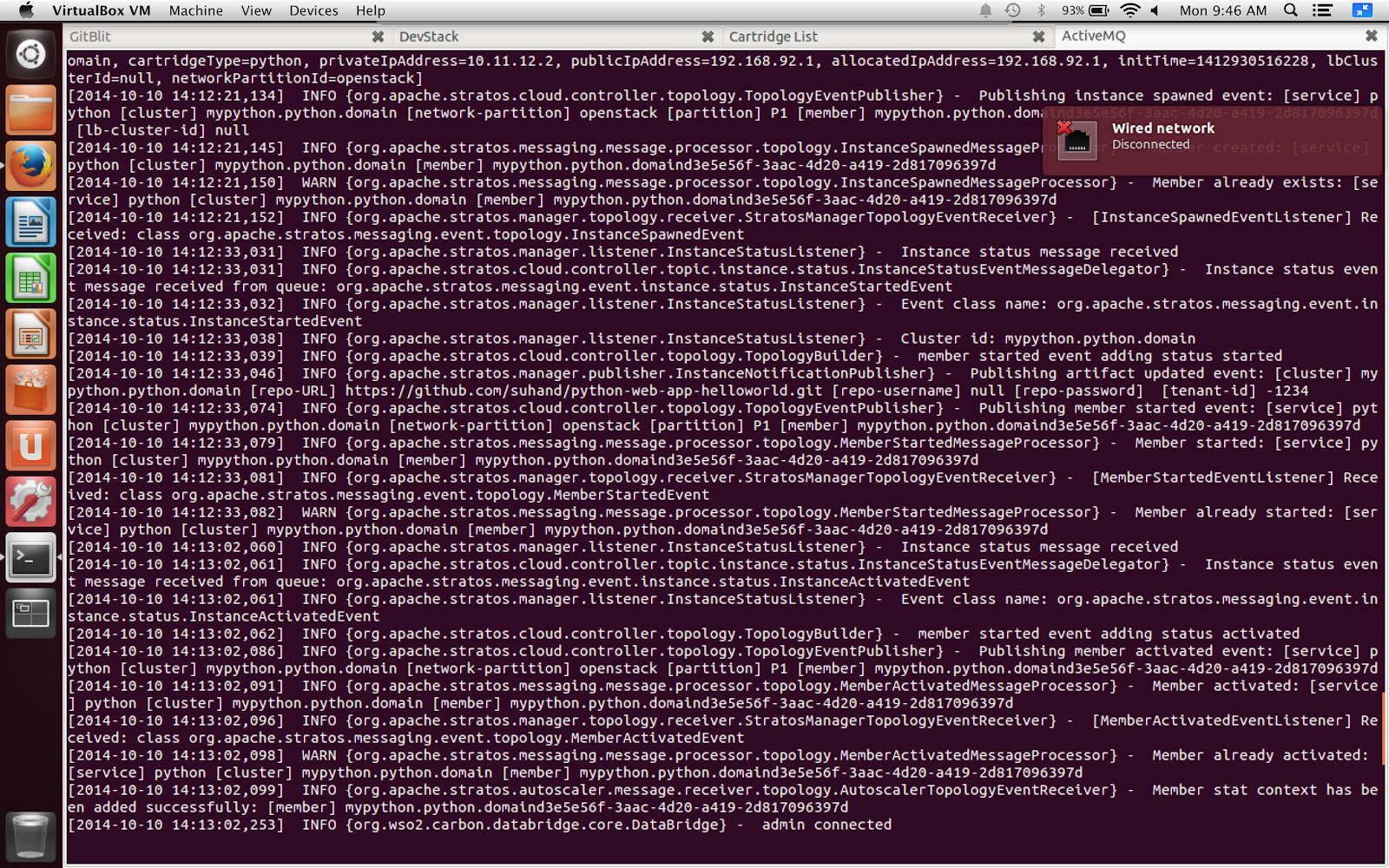
Stratos terminal output will be as follows.
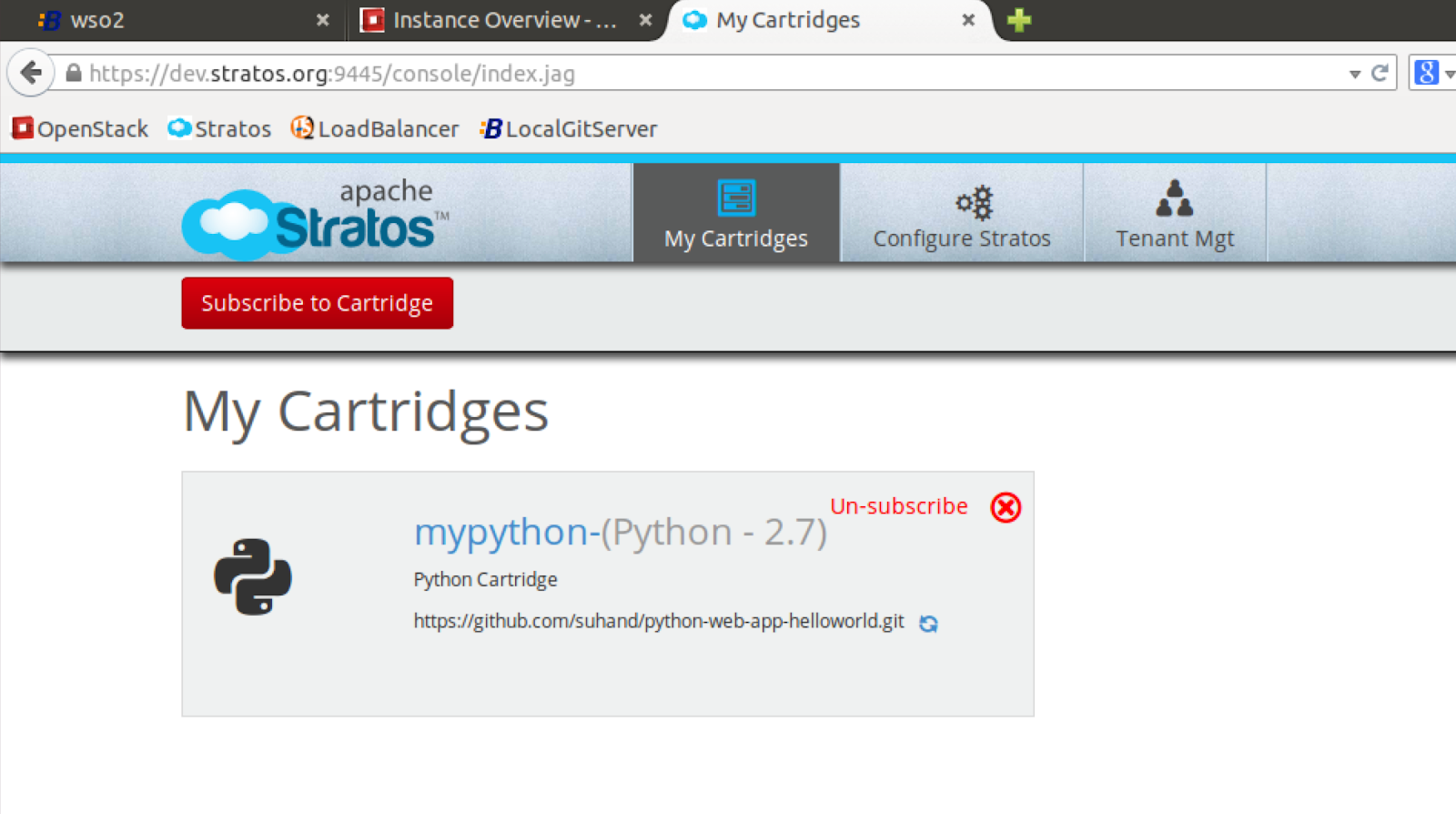
- Now subscribe to your newly built cartridge
Once you subscribe to the cartridge it will take some time to activate the instance.
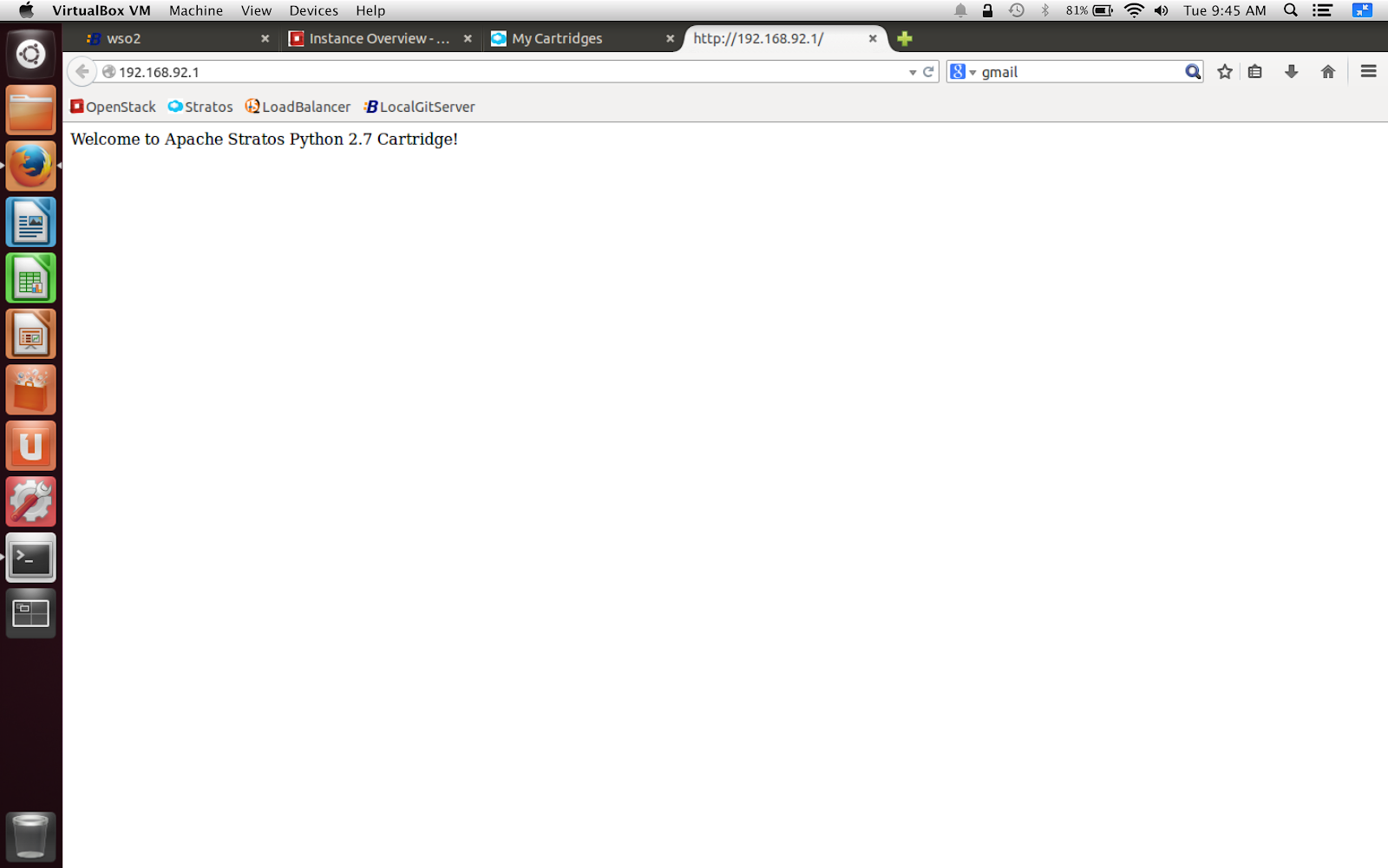
You can find the python application on docker instances public ip address, in this scenario 192.168.92.1
Labels:
Apache Stratos,
CherryPy,
Flask,
Python,
Python docker cartridge,
WSO2
Monday, October 13, 2014
When using python pip: read operation timeouts and distributions not found
What is Python pip?
Python pip is a package management system used in installing and managing python packages [1].
Why did I use pip?
In my Python docker cartridge for Apache Stratos project, I have created some python web applications and hosted them in github [suhan at github].
I installed the following dependencies prior using pip in my ubuntu 12.04.
apt-get install -y build-essential python-dev python-pip python-virtualenv libpq-dev
Prior running the python web applications, I have to install their python dependencies. Usually I put them inside a requirements.txt file as follows,
flask
cherrypy
Then I try to install the requirements via pip as follows,
pip install -r requirements.txt
Errors
Somewhere in the middle during installation I get these errors.
---- Installing git python web application project requirements ----
Downloading/unpacking flask
Running setup.py egg_info for package flask
warning: no files found matching '*' under directory 'tests'
warning: no previously-included files matching '*.pyc' found under directory 'docs'
warning: no previously-included files matching '*.pyo' found under directory 'docs'
warning: no previously-included files matching '*.pyc' found under directory 'tests'
warning: no previously-included files matching '*.pyo' found under directory 'tests'
warning: no previously-included files matching '*.pyc' found under directory 'examples'
warning: no previously-included files matching '*.pyo' found under directory 'examples'
no previously-included directories found matching 'docs/_build'
no previously-included directories found matching 'docs/_themes/.git'
Downloading/unpacking cherrypy
Running setup.py egg_info for package cherrypy
Downloading/unpacking Werkzeug>=0.7 (from flask)
Running setup.py egg_info for package Werkzeug
warning: no files found matching '*' under directory 'werkzeug/debug/templates'
warning: no files found matching '*' under directory 'tests'
warning: no previously-included files matching '*.pyc' found under directory 'docs'
warning: no previously-included files matching '*.pyo' found under directory 'docs'
warning: no previously-included files matching '*.pyc' found under directory 'tests'
warning: no previously-included files matching '*.pyo' found under directory 'tests'
warning: no previously-included files matching '*.pyc' found under directory 'examples'
warning: no previously-included files matching '*.pyo' found under directory 'examples'
no previously-included directories found matching 'docs/_build'
Downloading/unpacking Jinja2>=2.4 (from flask)
Running setup.py egg_info for package Jinja2
warning: no files found matching '*' under directory 'custom_fixers'
warning: no previously-included files matching '*' found under directory 'docs/_build'
warning: no previously-included files matching '*.pyc' found under directory 'jinja2'
warning: no previously-included files matching '*.pyc' found under directory 'docs'
warning: no previously-included files matching '*.pyo' found under directory 'jinja2'
warning: no previously-included files matching '*.pyo' found under directory 'docs'
Downloading/unpacking itsdangerous>=0.21 (from flask)
Could not find any downloads that satisfy the requirement itsdangerous>=0.21 (from flask)
No distributions at all found for itsdangerous>=0.21 (from flask)
Storing complete log in /root/.pip/pip.log
CherryPy server fails to start since dependencies are not properly installed.
---- Starting CherryPy Server ----
Sometimes I get the following error.
Exception:
Traceback (most recent call last):
File "/vagrant/venv/local/lib/python2.7/site-packages/pip/basecommand.py", line 134, in main
status = self.run(options, args)
File "/vagrant/venv/local/lib/python2.7/site-packages/pip/commands/install.py", line 236, in run
requirement_set.prepare_files(finder, force_root_egg_info=self.bundle, bundle=self.bundle)
File "/vagrant/venv/local/lib/python2.7/site-packages/pip/req.py", line 1092, in prepare_files
self.unpack_url(url, location, self.is_download)
File "/vagrant/venv/local/lib/python2.7/site-packages/pip/req.py", line 1238, in unpack_url
retval = unpack_http_url(link, location, self.download_cache, self.download_dir)
File "/vagrant/venv/local/lib/python2.7/site-packages/pip/download.py", line 622, in unpack_http_url
download_hash = _download_url(resp, link, temp_location)
File "/vagrant/venv/local/lib/python2.7/site-packages/pip/download.py", line 495, in _download_url
chunk = resp.read(4096)
File "/usr/lib/python2.7/socket.py", line 380, in read
data = self._sock.recv(left)
File "/usr/lib/python2.7/httplib.py", line 561, in read
s = self.fp.read(amt)
File "/usr/lib/python2.7/socket.py", line 380, in read
data = self._sock.recv(left)
File "/usr/lib/python2.7/ssl.py", line 241, in recv
return self.read(buflen)
File "/usr/lib/python2.7/ssl.py", line 160, in read
return self._sslobj.read(len)
SSLError: The read operation timed out
These errors are due to internet connectivity problems, slow internet speed, etc...
Since I'm using a VM to build my docker images these issues/errors are further amplified.

As a temporary solution I did retry several times and finally it was successfully installed.
retry: pip install -r requirements.txt
Then my CherryPy server started successfully.
---- Starting CherryPy Server ----
ENGINE Bus STARTING
ENGINE Started monitor thread 'Autoreloader'.
ENGINE Started monitor thread '_TimeoutMonitor'.
ENGINE Serving on http://0.0.0.0
ENGINE Bus STARTED
However according to stackoverflow [2] if you can use the following command the problem will be resolved.
pip --default-timeout=100 install django
Reference:
[1]http://en.wikipedia.org/wiki/Pip_(package_manager)
[2]http://stackoverflow.com/questions/18958508/sslerror-the-read-operation-timed-out-when-using-pip/19334551#19334551
Python pip is a package management system used in installing and managing python packages [1].
Why did I use pip?
In my Python docker cartridge for Apache Stratos project, I have created some python web applications and hosted them in github [suhan at github].
I installed the following dependencies prior using pip in my ubuntu 12.04.
apt-get install -y build-essential python-dev python-pip python-virtualenv libpq-dev
Prior running the python web applications, I have to install their python dependencies. Usually I put them inside a requirements.txt file as follows,
flask
cherrypy
Then I try to install the requirements via pip as follows,
pip install -r requirements.txt
Errors
Somewhere in the middle during installation I get these errors.
---- Installing git python web application project requirements ----
Downloading/unpacking flask
Running setup.py egg_info for package flask
warning: no files found matching '*' under directory 'tests'
warning: no previously-included files matching '*.pyc' found under directory 'docs'
warning: no previously-included files matching '*.pyo' found under directory 'docs'
warning: no previously-included files matching '*.pyc' found under directory 'tests'
warning: no previously-included files matching '*.pyo' found under directory 'tests'
warning: no previously-included files matching '*.pyc' found under directory 'examples'
warning: no previously-included files matching '*.pyo' found under directory 'examples'
no previously-included directories found matching 'docs/_build'
no previously-included directories found matching 'docs/_themes/.git'
Downloading/unpacking cherrypy
Running setup.py egg_info for package cherrypy
Downloading/unpacking Werkzeug>=0.7 (from flask)
Running setup.py egg_info for package Werkzeug
warning: no files found matching '*' under directory 'werkzeug/debug/templates'
warning: no files found matching '*' under directory 'tests'
warning: no previously-included files matching '*.pyc' found under directory 'docs'
warning: no previously-included files matching '*.pyo' found under directory 'docs'
warning: no previously-included files matching '*.pyc' found under directory 'tests'
warning: no previously-included files matching '*.pyo' found under directory 'tests'
warning: no previously-included files matching '*.pyc' found under directory 'examples'
warning: no previously-included files matching '*.pyo' found under directory 'examples'
no previously-included directories found matching 'docs/_build'
Downloading/unpacking Jinja2>=2.4 (from flask)
Running setup.py egg_info for package Jinja2
warning: no files found matching '*' under directory 'custom_fixers'
warning: no previously-included files matching '*' found under directory 'docs/_build'
warning: no previously-included files matching '*.pyc' found under directory 'jinja2'
warning: no previously-included files matching '*.pyc' found under directory 'docs'
warning: no previously-included files matching '*.pyo' found under directory 'jinja2'
warning: no previously-included files matching '*.pyo' found under directory 'docs'
Downloading/unpacking itsdangerous>=0.21 (from flask)
Could not find any downloads that satisfy the requirement itsdangerous>=0.21 (from flask)
No distributions at all found for itsdangerous>=0.21 (from flask)
Storing complete log in /root/.pip/pip.log
CherryPy server fails to start since dependencies are not properly installed.
---- Starting CherryPy Server ----
Traceback (most recent call last):
File "/var/www/www/server.py", line 5, in <module>
from app import app
File "/var/www/www/app.py", line 1, in <module>
from flask import Flask
ImportError: No module named flask
Sometimes I get the following error.
Exception:
Traceback (most recent call last):
File "/vagrant/venv/local/lib/python2.7/site-packages/pip/basecommand.py", line 134, in main
status = self.run(options, args)
File "/vagrant/venv/local/lib/python2.7/site-packages/pip/commands/install.py", line 236, in run
requirement_set.prepare_files(finder, force_root_egg_info=self.bundle, bundle=self.bundle)
File "/vagrant/venv/local/lib/python2.7/site-packages/pip/req.py", line 1092, in prepare_files
self.unpack_url(url, location, self.is_download)
File "/vagrant/venv/local/lib/python2.7/site-packages/pip/req.py", line 1238, in unpack_url
retval = unpack_http_url(link, location, self.download_cache, self.download_dir)
File "/vagrant/venv/local/lib/python2.7/site-packages/pip/download.py", line 622, in unpack_http_url
download_hash = _download_url(resp, link, temp_location)
File "/vagrant/venv/local/lib/python2.7/site-packages/pip/download.py", line 495, in _download_url
chunk = resp.read(4096)
File "/usr/lib/python2.7/socket.py", line 380, in read
data = self._sock.recv(left)
File "/usr/lib/python2.7/httplib.py", line 561, in read
s = self.fp.read(amt)
File "/usr/lib/python2.7/socket.py", line 380, in read
data = self._sock.recv(left)
File "/usr/lib/python2.7/ssl.py", line 241, in recv
return self.read(buflen)
File "/usr/lib/python2.7/ssl.py", line 160, in read
return self._sslobj.read(len)
SSLError: The read operation timed out
These errors are due to internet connectivity problems, slow internet speed, etc...
Since I'm using a VM to build my docker images these issues/errors are further amplified.
As a temporary solution I did retry several times and finally it was successfully installed.
retry: pip install -r requirements.txt
Then my CherryPy server started successfully.
---- Starting CherryPy Server ----
ENGINE Bus STARTING
ENGINE Started monitor thread 'Autoreloader'.
ENGINE Started monitor thread '_TimeoutMonitor'.
ENGINE Serving on http://0.0.0.0
ENGINE Bus STARTED
However according to stackoverflow [2] if you can use the following command the problem will be resolved.
pip --default-timeout=100 install django
Reference:
[1]http://en.wikipedia.org/wiki/Pip_(package_manager)
[2]http://stackoverflow.com/questions/18958508/sslerror-the-read-operation-timed-out-when-using-pip/19334551#19334551
Subscribe to:
Posts (Atom)